A pedometer that displays a few hundred steps after a long walk, or that remains at zero despite a thirty-minute stroll, raises a legitimate question about the reliability of the sensor or the application used. The problem affects both smartwatches and smartphones. Understanding what happens between the hardware sensor, software permissions, and device configuration allows for identifying the fault without wasting time.
Phone Position and Sensor: The Role of the Accelerometer in Step Counting
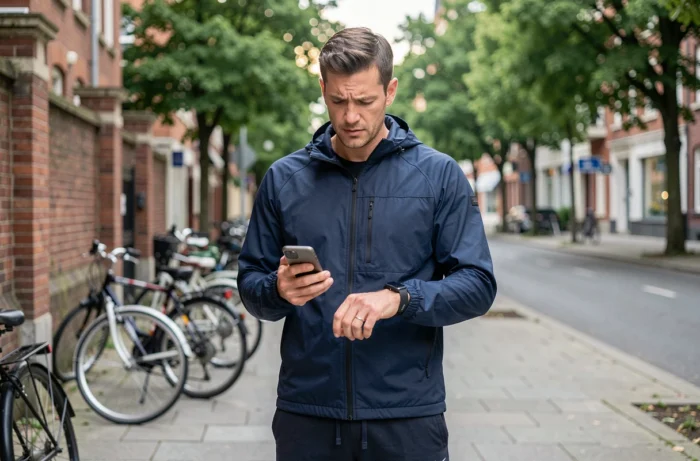
The pedometer integrated into a smartphone relies on an accelerometer. This sensor measures acceleration variations on three axes to detect the characteristic peaks of walking. When the phone is tucked in a pants pocket or attached to a belt, these peaks are clear and regular.
In contrast, a smartphone held in hand, placed in a backpack, or slipped into a loose jacket pocket generates erratic movements or, conversely, dampens the oscillations of the pelvis. The sensor then no longer receives a usable signal, leading to a sub-counting that can exceed half of the actual steps.
Before suspecting a hardware failure, test the same route by simply changing the phone’s location. If the counting becomes consistent with the device in the front pocket of the pants, the problem is neither software nor hardware: it’s a matter of positioning. When my pedometer stops working on Sport and Form, this basic check is the first recommended step before any technical manipulation.
Background Permissions and Battery Saver on Android
On Android devices, battery saver mode is one of the most common causes of incomplete counting. When this mode is active, the system suspends background applications to preserve battery life. The pedometer continues to function in the foreground, but as soon as the screen turns off, data collection stops.
The result is characteristic: steps display normally for a few minutes, then the counter freezes. It sometimes resumes upon unlocking, with a delay or a block of steps added all at once.
Settings to Check on Android
- Access battery settings and disable battery optimization for the counting app (Google Fit, Samsung Health, Huawei Health, or the third-party app used)
- Check that the app has the “Physical Activity” or “Motion Recognition” permission in privacy settings
- Ensure that the data source (Health Connect or Google Fit) is properly connected and that the app is authorized as a third-party app
- Restart the device after modifying permissions, as some changes only take effect after a reboot
On Huawei, Samsung, or Xiaomi overlays, a “protected” or “allowed in the background” app manager is added to standard Android settings. Ignoring this second level of permission blocks synchronization even if the system settings seem correct.
Delayed Synchronization: When the Counter Does Not Display Steps in Real Time
Some applications do not update the step counter in real time. They aggregate data at intervals (every fifteen minutes, every hour, or at the next network connection) before updating the display. This behavior is normal and documented by several support services.
The trap is to confuse a synchronization delay with a sensor malfunction. To clarify, compare the number of steps displayed by your phone’s native health app (Health on iPhone, Samsung Health on Galaxy) with that of the third-party app. If the native app counts correctly but the third-party app shows a lower or zero figure, the sensor is functioning. The problem lies in the synchronization chain between the two software.
A discrepancy of fifteen to twenty percent between two applications is considered normal by several publishers. Each software applies its own filtering algorithms to distinguish a step from erratic movement, resulting in slightly different outcomes from the same raw data.
Default Stride and Pedometer Calibration
A pedometer does not simply count jolts. It converts each detected step into a distance by applying a stride length. Most devices use a default value based on the height entered in the user profile. If this height is missing or incorrect, the conversion produces inconsistent data.
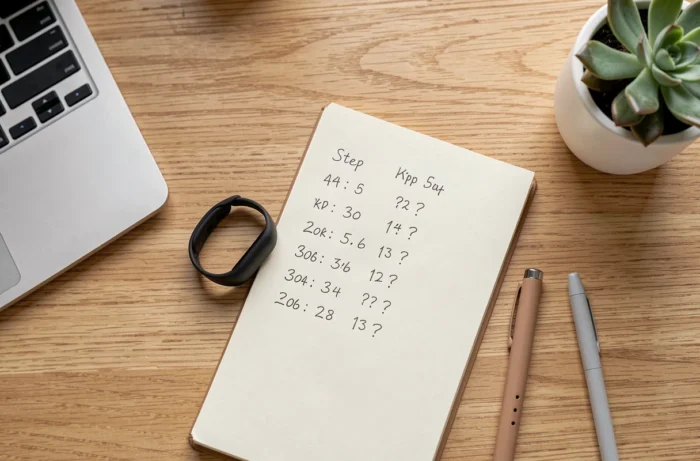
The most reliable calibration method involves walking a known distance (a sports field, a measured corridor) while manually counting steps, then dividing the distance by the number of steps. The value obtained replaces the default stride in the app settings.
This calibration does not directly affect the number of steps displayed, but it alters the distance and calories calculated. When a user says “my pedometer counts incorrectly,” they sometimes refer to an aberrant distance rather than an incorrect step count. Differentiating counting errors from conversion errors prevents unnecessary diagnostics on the sensor.
Smartwatch and Activity Tracker: Specific Causes
On a smartwatch or activity tracker, the pedometer has its own accelerometer, independent of the phone. Counting issues then take different forms.
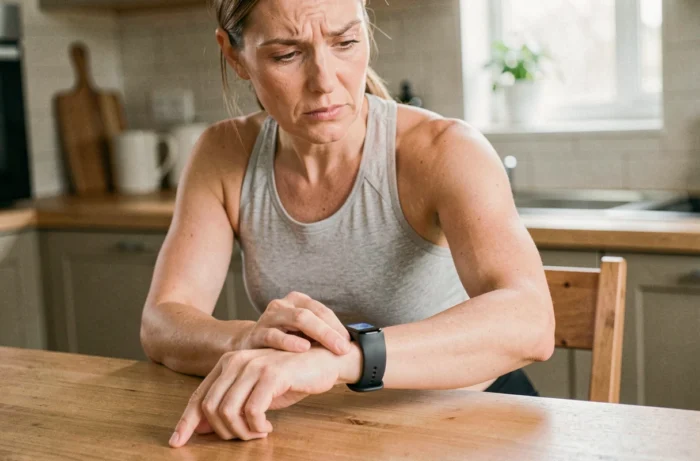
A bracelet worn too loosely slips on the wrist and generates micro-movements that the sensor interprets as phantom steps. Conversely, a bracelet that is too tight compresses the wrist and reduces the amplitude of detected oscillations. Wearing it on the non-dominant wrist, with a finger’s space from the wrist, is the most common recommendation for reliable counting.
Firmware updates can also modify the step filtering algorithm. After an update, some users notice a sudden drop in their daily step count. The sensor has not changed, but the detection threshold has been adjusted by the publisher, often to reduce false positives. Field feedback varies on this point: some find the new counting more realistic, while others believe that real steps are now ignored.
A pedometer that no longer counts correctly rarely results from a hardware failure. The position of the device, background restrictions, missing permissions, and stride calibration cover the vast majority of cases. Testing each parameter in isolation, changing only one setting at a time, remains the most straightforward method to identify the exact cause of the malfunction.